
Owner
A defined Moments by QR family role. Confirm its current permissions.
Step by step
No jargon and no guesswork: this is the whole process, from creating a memorial to remembering someone years later — including where a QR plaque fits, and where it doesn't.
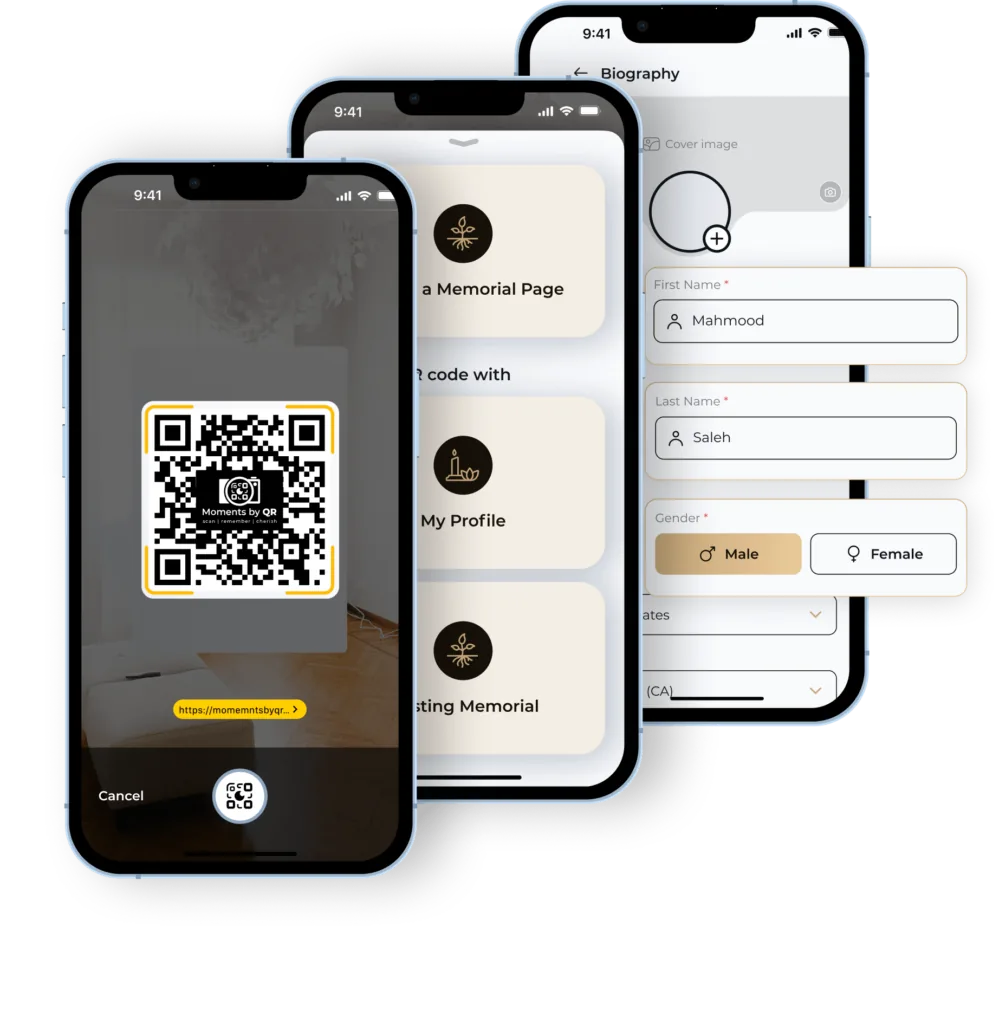
A family creates a memorial page in the app, fills it with the person's biography, timeline, photographs, family tree and grave location, chooses who can see it, and invites relatives to help keep it. An optional QR plaque at the resting place opens the same memorial when scanned.
New to the idea altogether? Start with what a digital memorial is.
A Memorial Page is created in the Moments by QR app for the person who has passed. Check the account and family-role settings during setup.
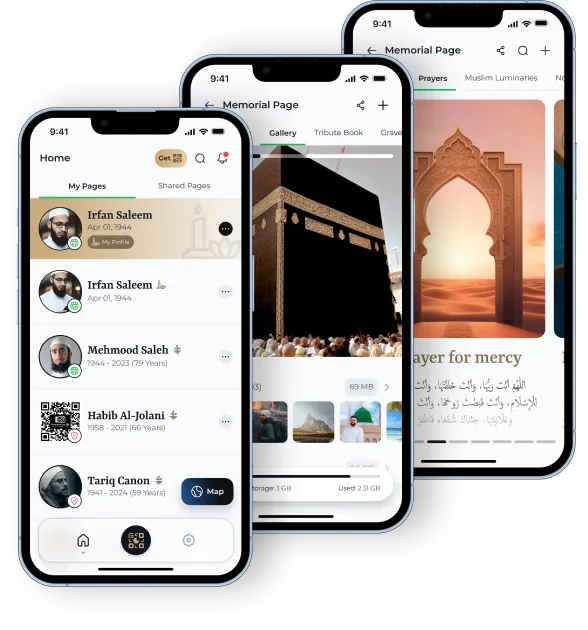
The biography and timeline are filled in — where they were born, the work they did, the journeys they made, the moments the family wants kept.
The gallery collects pictures that would otherwise stay scattered across different phones and albums.
The family tree records relationships across generations, and the grave location records where the person is buried so relatives can find it.
Public, public with role and access controls, or private and PIN-protected. This decides who can reach the memorial at all.
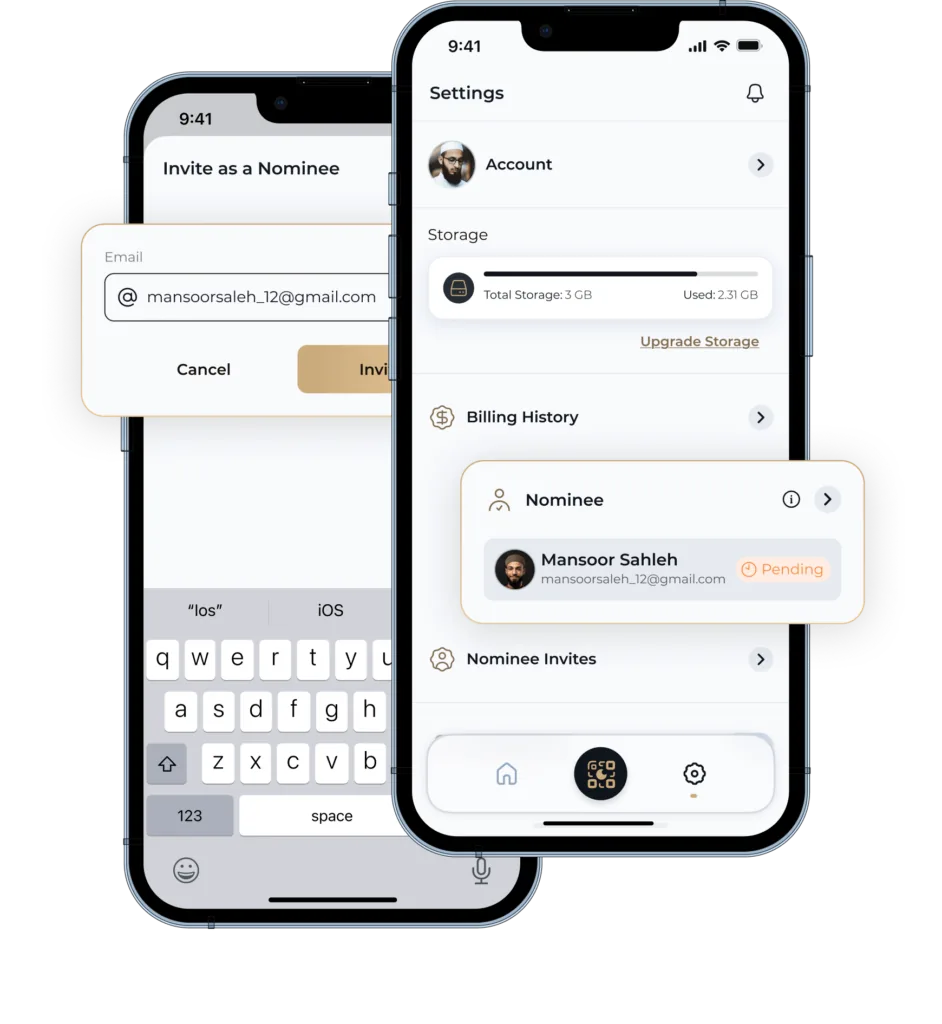
The memorial is shared with relatives using the Owner, Delegate, Contributor and Nominee roles, so it is not left resting on one person.
A 5cm × 5cm matte black QR plaque can be linked to the memorial and placed at the resting place, where the burial ground permits it.
On This Day resurfaces moments on their anniversary, and custom notifications let the family set their own reminders. The Tribute Book keeps collecting messages.
More than one person. Moments by QR has four roles — Owner, Delegate, Contributor and Nominee — set up in the app, so a memorial is not tied to a single person's memory or a single person's phone.
A defined Moments by QR family role. Confirm its current permissions.
A defined Moments by QR family role. Confirm its current permissions.
A defined Moments by QR family role. Confirm its current permissions.
A defined Moments by QR family role. Confirm its current permissions.
Confirm what each role may add, edit, approve or remove before inviting relatives. This guide does not establish a permission matrix.
Then it is kept private. A memorial can be public, public with role and access controls, or private and PIN-protected — the privacy mode is chosen by the family, not by us, and a QR plaque does not force a memorial to be public.
If a memorial is PIN-protected, someone scanning the plaque at the graveside sees the protection, not the contents. More on that in QR memorials.
These steps describe a Memorial Page for someone who has died, of any age. Moments by QR also provides a Legacy Page for a living person; that is distinct from the Memorial Page described here.
It keeps working. Family members keep adding photographs and tributes, On This Day brings moments back on their anniversary, and custom notifications let the family set their own reminders to remember someone.
Before committing to any provider, it is worth asking what happens to the memorial in ten or twenty years — here is the checklist.
The whole process runs in the Moments by QR app — create the memorial, add the story, set the privacy and invite the family.
Moments by QR states product facts about its own service from first-party product information, cites official primary sources for anything statutory or operational, and leaves questions it cannot evidence visibly unanswered rather than guessing.
The category page: what a memorial page holds and who it is for.
Connecting a plaque at the resting place to the memorial behind it.
Why plain graves and dispersed families make a written record matter.